 Language
 Español
 Português
 Français
 Deutsche
 हिन्दी
 Nederland
 Русский
Elemental Neon
Rating: 4.33 from 5 (based on 12 votes. 👍 10 – users like it, 👎 2 – disliked, 💬 0 – comments posted)
Released: August 2026
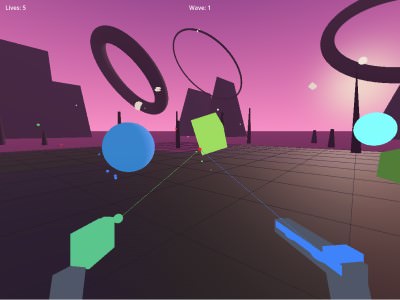
Elemental Neon is a fast arcade shooting game that can be played with a mouse and keyboard or through a compatible WebXR virtual reality headset. Your goal is to identify each enemy, select the correct weapon, and destroy the target before it reaches you.
The game features four weapon types and four enemy types, creating a quick reaction challenge where choosing the right attack is just as important as aiming accurately. Players can switch weapons, shoot incoming targets, and survive for as long as possible while the neon arena becomes increasingly dangerous ⚡🎯.
Play Elemental Neon online on PlayMiniGames using standard desktop controls or enter VR mode with a supported WebXR browser, headset, and motion controllers.
Play Elemental Neon Online
Elemental Neon is designed to work in two different ways. Desktop players can use the mouse and keyboard, while VR players can enter the same neon world through WebXR.
The desktop version is useful for players who do not own a headset or who want to understand the basic mechanics first. The VR version adds motion-controlled aiming, physical weapon handling, controller vibration, and a stronger sense of being surrounded by enemies.
The gameplay is intentionally simple: recognize the enemy, switch to the matching weapon, and shoot before the target touches you.
The game was created as a quick technical demo for the ManiFest VR Jam #2, so it focuses on one central idea instead of a long campaign or complicated progression system.
How to Play Elemental Neon
Enemies approach from different directions. Each type must be attacked with the correct weapon. Shooting with the wrong weapon may waste time and leave you vulnerable.
Keep track of which weapon is currently selected, watch the full arena, and react before an enemy reaches your position.
The challenge becomes more difficult when several enemy types appear at once or approach from behind. Fast weapon switching and spatial awareness are essential.
Choose the Correct Weapon
There are four weapon types and four corresponding enemy types. Learn the visual appearance of each enemy and remember which weapon can defeat it.
Do not fire automatically at every target. A short pause to identify the enemy can be more useful than shooting with the wrong weapon.
Watch Every Direction
Enemies may approach from outside your direct field of view. In VR, turn your head and body regularly instead of focusing only on the area in front of you.
The developer notes that enemies approaching from behind can be easy to miss, especially when sound cues are difficult to hear in the audio mix.
Desktop Controls
The desktop version uses the mouse for shooting and the keyboard for weapon switching.
- Left Mouse Button — Shoot with one weapon
- Right Mouse Button — Shoot with the other weapon
- Q — Swap weapons
- E — Swap weapons
The exact relationship between each mouse button and weapon hand is determined by the game interface. Watch the current weapon colors and effects before firing.
VR and WebXR Controls
The VR version requires a compatible headset and tracked controllers. A headset without motion controllers is not sufficient for the intended gameplay.
- Controller Triggers — Shoot
- Grip Buttons — Swap weapons
- Controller Movement — Aim the weapons
The game includes a custom JavaScript bridge for controller haptics. This allows supported controllers to provide vibration feedback even though the developer found that Godot’s WebXR implementation did not expose the feature directly.
The project was tested mainly in a browser on Meta Quest 3S. Compatibility and performance may differ on other headsets, browsers, or WebXR runtimes.
Four Weapons and Four Enemy Types
The central mechanic is based on elemental matching. Each incoming enemy belongs to one of four types, and each type requires the corresponding weapon.
This creates a combination of aiming and memory. You must quickly answer two questions:
- Which enemy is approaching?
- Which weapon defeats that enemy?
As the pace increases, incorrect weapon selection can become more dangerous than poor aim. Players need to switch confidently instead of repeatedly checking the controls.
The primitive neon shapes make enemies visually distinct without requiring detailed character models. This helps keep the action readable and also supports better performance in the browser.
Health and Visual Feedback
Elemental Neon uses the environment itself to communicate the player’s remaining health. Instead of relying only on a traditional HUD, the sky changes color depending on how many lives remain.
This is an experimental design choice intended to keep the VR view less cluttered. However, the developer notes that players may not always notice the color change while concentrating on enemies.
When playing, pay attention to shifts in the sky and overall lighting. These changes may indicate that your health is becoming dangerously low.
Unique movement sounds were also added for different enemies, but the developer felt that they may not stand out clearly enough in the mix. Visual awareness remains important.
Flashing Lights Warning
Elemental Neon may contain flashing lights and bright neon effects. Players who are sensitive to flashing images, rapid lighting changes, or strong visual contrast should use caution.
Stop playing immediately if you experience eye strain, dizziness, discomfort, nausea, headaches, or unusual visual symptoms.
VR users should also make sure the play area is clear before starting. Turning quickly to track enemies can cause accidental contact with furniture, walls, or nearby people.
Built with Godot 4.5 and WebXR
Elemental Neon was made in Godot 4.5 using the Godot WebXR Template as its starting point.
The developer first built the game for desktop and then adapted it for virtual reality. This made the early workflow easier, although it also created design limitations because some decisions were already fixed before the VR port began.
The first VR version reportedly suffered from noticeable performance problems. Optimization was required to make the browser build run more smoothly.
A glow effect also caused an issue where the left eye flashed between two images. The effect was therefore problematic during development and may relate to the WebXR or rendering implementation used at the time.
AI-Assisted Development
The project includes a detailed AI disclosure from the developer.
Most of the code was written with assistance from GLM-5.2 through Claude Code. GPT-5.6-Terra in Codex was used to help solve more difficult bugs that GLM could not resolve.
GLM-5.2 was also used to help create the primitive graphics and lighting effects. The audio combines Logic Pro loops with custom waveforms generated through scripts.
The project therefore serves not only as a VR game, but also as an experiment in AI-assisted game development, Godot workflows, WebXR compatibility, and browser-based controller haptics.
Tips for Surviving Longer
- Memorize the relationship between each enemy and weapon.
- Keep both Q and E ready on desktop for faster switching.
- Avoid pressing VR grip buttons accidentally during combat.
- Turn regularly to check for enemies behind you.
- Use visual movement cues when enemy sounds are difficult to hear.
- Watch the sky color for changes in remaining health.
- Prioritize nearby enemies before distant targets.
- Use controlled shots instead of firing randomly.
- Clear enough physical space before playing in VR.
Why Players May Enjoy Elemental Neon
Elemental Neon may appeal to players who enjoy WebXR shooting games, neon arcade action, VR target challenges, elemental weapon systems, and short game jam projects.
The main mechanic is easy to understand but becomes demanding when several enemy types appear from different directions. The need to identify, switch, aim, and shoot creates a quick mental and physical rhythm.
Desktop support also makes the project accessible to players without VR hardware, while the WebXR version offers a more immersive experience with motion controls and haptic feedback.
Players searching for Elemental Neon online, WebXR shooter games, Meta Quest browser games, VR elemental combat games, neon target shooters, or Godot WebXR demos may find this project interesting.
Elemental Neon Features
- Desktop and WebXR gameplay
- Four different weapon types
- Four different enemy types
- Elemental weapon-matching mechanic
- Mouse and keyboard support
- VR motion-controller support
- Controller haptic feedback through a custom JavaScript bridge
- Neon primitive-shape graphics
- Health indicated through sky color
- Enemies that can approach from multiple directions
- Made with Godot 4.5
- Created for ManiFest VR Jam #2
- Tested mainly on Meta Quest 3S
- Flashing light warning
FAQ About Elemental Neon
What type of game is Elemental Neon?
Elemental Neon is an arcade shooting game where players use the correct weapon against four different enemy types.
Can Elemental Neon be played without VR?
Yes. The game supports mouse and keyboard controls on desktop.
What is required for VR mode?
You need a WebXR-compatible browser, a supported VR headset, and tracked VR controllers.
How do you shoot in VR?
Use the controller triggers to fire.
How do you swap weapons in VR?
Use the grip buttons to change weapons.
How do you play on desktop?
Use the left and right mouse buttons to shoot, and Q or E to swap weapons.
How many weapons and enemies are in the game?
Elemental Neon includes four weapon types and four enemy types.
Does the game contain flashing lights?
Yes. The developer warns that the game may contain flashing light effects.
Which VR headset was used for testing?
The game was tested mainly in a browser on Meta Quest 3S.
What engine was used?
Elemental Neon was created in Godot 4.5 using the Godot WebXR Template.