 Language
 Español
 Português
 Français
 Deutsche
 हिन्दी
 Nederland
 Русский
BuildCraft
Rating: 4.38 from 5 (based on 13 votes. 👍 11 – users like it, 👎 2 – disliked, 💬 0 – comments posted)
Released: August 2026
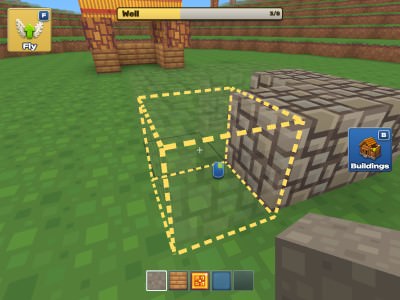
BuildCraft is a creative 3D block-building game where you can explore a colorful voxel world, follow guided construction plans, and create your own structures block by block. Choose a project such as a house, well, or windmill, follow its transparent blueprint, and place the required blocks until the entire building takes shape 🧱🏠.
The game combines guided construction with open creative building. You can move freely across the terrain, jump, sprint, fly, select materials from the creative inventory, remove blocks, and reshape the world whenever you want. Once you understand the building tools, you can move beyond the supplied plans and experiment with your own ideas.
Play BuildCraft online on PlayMiniGames directly in your browser on desktop or mobile and start creating your own voxel world without needing a separate installation.
Play BuildCraft Online
BuildCraft gives players a large 3D block environment where construction is the main focus. Instead of beginning with an empty world and no direction, you can select a building project and use its transparent outline as a guide.
The outline shows where blocks belong, making it easier to understand the shape of a structure before it is complete. Place blocks into the indicated positions one by one until the project is finished.
This approach is useful for players who enjoy building games but prefer having a clear objective. Once a guided project is complete, you can continue exploring and creating without being limited to the original plan.
How to Play BuildCraft
Start by selecting a building from the available project menu. A transparent block outline appears in the world showing the structure you need to construct.
Choose the appropriate material from your inventory or hotbar and place blocks inside the outline. Continue until all required parts of the structure are filled.
You can also ignore the guided builds and use the same tools for free construction.
- Choose a building project
- Follow the transparent block outline
- Select materials from the creative inventory
- Place blocks in the required positions
- Remove blocks when you make a mistake
- Complete houses, wells, windmills, and other structures
- Explore the surrounding voxel world
- Fly when you need easier access to high areas
- Shape the terrain and create original designs
Build from Transparent Blueprints
The guided building system is one of the main features of BuildCraft.
Instead of forcing you to memorize how a structure should look, the game places a transparent outline directly into the world. This provides a clear construction target and helps you understand where every block belongs.
You can work through the design at your own pace. There is no need to finish everything immediately, so you can move around the structure, inspect it from different angles, and fill difficult sections later.
The blueprint-style system also makes larger builds easier to approach because the finished shape is visible before construction is complete.
Create Houses, Wells, Windmills, and More
The supplied description lists several types of guided structures, including houses, wells, and windmills.
Each project gives you another opportunity to practice block placement and learn how larger voxel structures are assembled.
Buildings with different shapes also require different construction strategies. A house may involve walls and roofs, while a windmill can require more attention to height and positioning.
Use flight when necessary to reach upper sections instead of repeatedly building temporary platforms.
Creative Inventory and Building Materials
BuildCraft includes a creative inventory that lets you choose materials for construction.
On desktop, press E or I to open the inventory. The hotbar provides quick access to selected blocks, and keys 1 through 9 let you switch directly between slots.
This makes it easy to alternate between several materials while working on a larger structure.
When creating your own builds, try combining different block types instead of constructing everything from a single material. Variation can make walls, floors, roofs, and decorative sections easier to distinguish.
Place and Remove Blocks
Block placement is the foundation of BuildCraft.
On desktop, right-click to place the selected block. Hold the left mouse button when you want to remove an existing block.
Being able to remove blocks freely means mistakes are easy to correct. If a block is placed in the wrong location, simply break it and rebuild that section.
The same tools can also be used to reshape the landscape. Remove terrain where you want flatter ground or add blocks to create platforms, walls, paths, and custom features.
Jump, Sprint, and Fly Around the World
BuildCraft provides several movement options to make exploration and construction easier.
Use WASD to move normally and Shift when you want to sprint. Space makes your character jump.
Press F to toggle flight. Flying is particularly useful during construction because it allows you to reach rooftops, towers, and other elevated areas without needing stairs or temporary scaffolding.
Flight can also help you inspect a completed building from above and notice missing or misplaced blocks.
Create Your Own Voxel Designs
The guided building projects are only one part of the game.
Once you are comfortable with block placement, you can start constructing your own designs anywhere in the world.
Create a custom house, extend an existing structure, reshape the terrain, or combine several ideas into a larger settlement.
Creative mode gives you the freedom to experiment without having to follow a specific blueprint.
Players who enjoy sandbox building can use the provided projects as inspiration before moving on to completely original constructions.
Explore the Block World
BuildCraft is not limited to standing in one construction area.
You can move freely through its colorful voxel environment and choose where you want to build.
Exploration can also help you find interesting terrain for new projects. Flat areas are useful for large buildings, while hills or elevated spaces can inspire towers and scenic structures.
Because you can remove and place blocks freely, the environment itself becomes part of the creative process.
BuildCraft on Mobile
BuildCraft can also be played on mobile devices using touchscreen controls.
The mobile interface automatically provides an on-screen joystick and action buttons for movement, jumping, looking around, block placement, block removal, inventory access, building selection, and flight.
This allows the core building experience to work without a physical keyboard or mouse.
Mobile players can use the same general construction process: select a project, follow the transparent outline, choose blocks, and complete the structure.
Desktop Controls
- WASD — Move
- Mouse — Look around
- Space — Jump
- Shift — Sprint
- Hold Left Mouse Button — Remove block
- Right Mouse Button — Place block
- E or I — Open creative inventory
- 1–9 — Select hotbar slot
- B — Open Buildings menu
- F — Toggle flight
- Esc — Open settings
Mobile Controls
- On-screen joystick — Move
- Touch controls — Look around
- Action buttons — Jump, place blocks, and remove blocks
- Inventory button — Open creative inventory
- Buildings button — Choose guided construction projects
- Flight button — Toggle flying
Best Tips for BuildCraft
- Start with a guided project to learn the building system.
- Use the transparent outline to check exactly where each block belongs.
- Keep commonly used materials in the hotbar.
- Use flight when working on roofs and tall structures.
- Remove misplaced blocks immediately before continuing.
- Inspect large builds from different angles.
- Finish the main shape before adding your own decorations.
- Use different materials to make custom builds more visually varied.
- Flatten terrain before starting very large structures if necessary.
- Experiment with original designs after completing several guided builds.
Why Players May Enjoy BuildCraft
BuildCraft may appeal to players who enjoy block-building games, voxel sandboxes, creative construction games, Minecraft-style browser games, building simulators, and open-ended world creation.
The transparent blueprint system makes it easier for beginners to construct recognizable buildings, while free building gives more experienced players room to experiment.
The combination of creative inventory, flight, terrain editing, guided structures, desktop controls, and mobile support makes the game suitable for both short building sessions and larger creative projects.
Players searching for BuildCraft online, BuildCraft game, 3D block building game, voxel building game, Minecraft-style browser game, creative block game, or build houses online may find this title particularly relevant.
BuildCraft Features
- Creative 3D voxel world
- Block placement and removal
- Guided construction projects
- Transparent building outlines
- Houses, wells, windmills, and other structures
- Creative inventory
- Nine-slot hotbar selection
- Free terrain editing
- Custom building creation
- Jumping and sprinting
- Toggleable flight
- Free exploration
- Desktop browser controls
- Mobile touchscreen controls
- Playable directly in the browser
FAQ About BuildCraft
What type of game is BuildCraft?
BuildCraft is a creative 3D voxel building game where players can follow guided construction plans or freely create their own block structures.
How do guided buildings work?
Select a project and place blocks inside its transparent outline until the structure is complete.
What can you build in BuildCraft?
The supplied description mentions houses, wells, windmills, and other structures, while free building allows you to create your own designs.
Can you fly in BuildCraft?
Yes. On desktop, press F to toggle flight. Mobile also includes a flight control.
How do you place blocks on desktop?
Right-click to place the currently selected block.
How do you remove blocks?
Hold the left mouse button on desktop. Mobile players can use the corresponding on-screen action button.
How do you open the creative inventory?
Press E or I on desktop. Mobile players can use the inventory button on the screen.
Can BuildCraft be played on mobile?
Yes. The game supports mobile devices with automatically available touchscreen controls.
Can you build without following a blueprint?
Yes. In addition to guided projects, you can explore freely, modify terrain, and create your own structures.